Infographic explaining the difference between Wi-Fi and the Internet in a shared student apartment.

Does Your Apartment Include Wi-Fi? Cool… But What Does That Actually Mean?

The other day I was helping a friend find off-campus housing for her second year at the University of Ottawa.

Like most students, she had a checklist.

Close to campus.

Within budget.

Utilities included.

And, of course… Wi-Fi.

Listing after listing proudly advertised “High-Speed Wi-Fi Included!” It seemed to be one of the biggest selling features.

After seeing it over and over again, I stopped and asked myself a simple question.

How many students actually know what that means?

That question quickly turned into a conversation, and it made me realize something.

Today’s generation has grown up surrounded by technology. Smartphones, tablets, laptops, gaming consoles, smart TVs… they’ve never known a world without them. They can install apps, stream movies, join video calls, and connect just about anything to Wi-Fi without giving it a second thought.

But ask how that Wi-Fi gets to their phone…

Or what they’re actually connecting to…

And many have no idea.

That’s not meant as a criticism.

Nobody ever taught them.

Technology has become so easy to use that we’ve stopped explaining how it works.


Wi-Fi Isn’t the Internet

This is probably the biggest misconception I run into.

People often use the terms Wi-Fi and Internet as if they’re the same thing.

They’re not.

The Internet is the service coming into the building from your Internet Service Provider (Bell, Rogers, TekSavvy, etc.).

Wi-Fi is simply the wireless connection between your device and your router.

Think of it like this.

The Internet is the road leading to your house.

Your modem is the front door.

Your router directs everyone where they need to go.

Wi-Fi is just the hallway connecting your phone or laptop to that router.

No Internet connection?

Your Wi-Fi network can still exist… it just won’t take you anywhere.


So What Does “Wi-Fi Included” Really Mean?

This is where my IT brain started asking questions.

When a landlord advertises Wi-Fi Included, are they paying for a separate Internet connection for every tenant?

Probably not.

In most cases there’s a single Internet connection coming into the house.

One modem.

One router.

Everyone connects to it.

There’s nothing wrong with that. In fact, it’s exactly how most homes work.

But when you move into a shared house with five or six other people, you’re no longer the only one using it.


You’re Sharing More Than You Think

Imagine it’s seven o’clock on a Tuesday night.

One roommate is watching Netflix.

Someone else is downloading the latest Call of Duty update.

Another is on a Zoom class.

Someone’s uploading photos to the cloud.

Another is gaming online.

Everyone is using the same Internet connection.

Think of it like traffic on the Queensway.

The more cars you add, the slower things move.

That’s why your “high-speed fibre Internet” can sometimes feel anything but fast.


It’s Not Just the Internet You’re Sharing

Here’s the part that made me stop and think.

If everyone in the house is connected to the same Wi-Fi network, there’s a good chance they’re also connected to the same local network.

That doesn’t automatically mean people can see what’s on your computer.

Modern versions of Windows, macOS, Android, and iPhones are much more secure than they were years ago.

But…

You’re still trusting everyone on that network.

If someone has an infected computer…

If they’ve disabled security features…

If they’re running outdated software…

Or if the network hasn’t been configured properly…

There are risks.

Most people never think about that because all they see is a Wi-Fi password.


Public Wi-Fi Isn’t Much Different

The same idea applies at coffee shops, hotels, airports, and restaurants.

Yes, they’re convenient.

Yes, we’ve all used them.

But remember…

You’re sharing those networks with complete strangers.

If you’re checking your bank account, logging into work, or accessing anything sensitive, using a trusted VPN is never a bad idea.

It’s one more layer of protection between your device and everyone else on that network.


Questions Worth Asking

If you’re renting a room and the listing says “Wi-Fi Included,” don’t be afraid to ask a few questions.

  • How many people share the Internet connection?
  • Is there a separate Wi-Fi network for each apartment or floor?
  • Who do I contact if the Internet goes down?
  • Is the connection fibre, cable, or DSL?
  • Can I plug directly into the router if I need a faster connection?

Most landlords will happily answer those questions.


Nobody Is Born Knowing This Stuff

After more than 25 years working in IT, I’ve learned something.

The biggest security risk usually isn’t technology.

It’s assuming someone else has already explained it.

They haven’t.

We teach people how to use apps.

We don’t teach them what happens after they tap the icon.

Understanding a few basic concepts—what Wi-Fi actually is, how the Internet reaches your devices, and what it means to share a network—can help you make smarter decisions wherever you live.

Whether you’re moving into your first apartment, heading off to university, or just connecting to the free Wi-Fi at your favourite coffee shop, a little knowledge goes a long way.

The next time you see a rental listing proudly advertising “Wi-Fi Included,” take a second and ask yourself one simple question.

“How is that Wi-Fi actually being provided?”

You might be surprised by the answer.
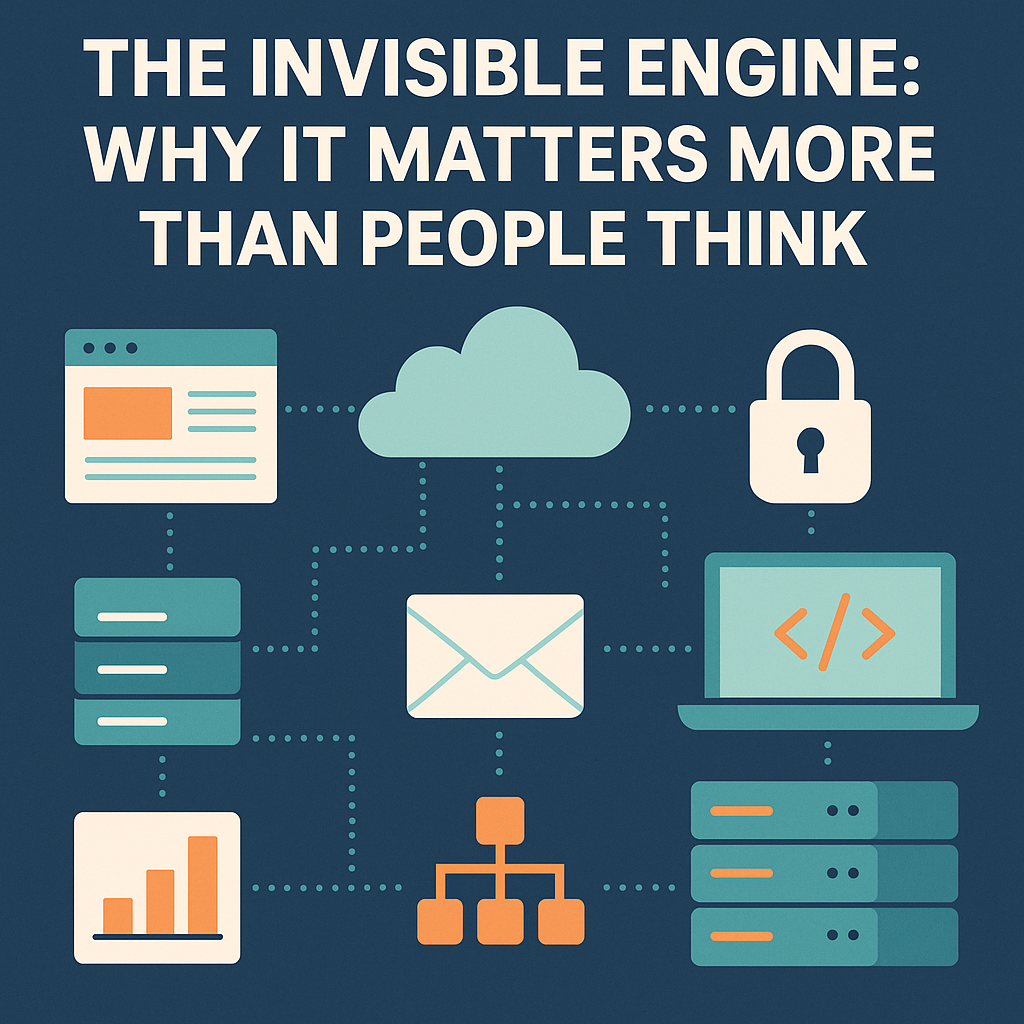
The Invisible Engine: Why IT Matters Even When It Doesn’t “Generate Revenue”

Illustration showing IT systems connected behind the scenes, symbolizing how IT supports uptime, productivity, and business growth.
IT keeps everything running in the background—even when no one notices.

In many companies—especially small businesses—small business IT support is treated like a cost center, something that doesn’t directly generate revenue. But anyone who’s worked in IT knows that nothing could be further from the truth.

Yes, IT may not be selling a product or closing deals. We’re not out there writing invoices or directly bringing in revenue. But what IT does is enable everything and everyone else to do those things.

And without that behind-the-scenes work, the revenue-generating teams don’t generate much of anything.


Uptime is revenue. Reliability is revenue.

Think about what happens when:

  • The website goes down for an hour.
  • Email stops syncing.
  • A server stalls during payroll.
  • A shared folder stops cooperating.
  • A VPN glitch locks field teams out of their tools.

None of those things “sell” anything.
But every one of them kills productivity, kills trust, and in many cases kills revenue faster than anything else.

A recent CompTIA IT Industry Outlook report shows that small businesses lose significant revenue every year due to downtime and preventable IT failures.

IT’s job is to make these invisible systems work so well that people forget how much depends on them.


How Small Business IT Support Helps the People Who Create Revenue

Sales can’t close deals without:

  • functioning CRM
  • working phones and email
  • properly set-up devices
  • secure access to files
  • a website that loads in under a second
  • forms that actually submit
  • software that doesn’t freeze mid-demo

The office can’t bill clients without:

  • servers that stay online
  • solid backups
  • stable networks
  • reliable data systems

Operations can’t operate without:

  • secure remote access
  • software that works in the field
  • devices configured correctly
  • credentials managed properly

IT is indirect revenue because it ensures every other team can perform at full speed.


Why Security Matters in Small Business IT Support

One security breach can cost more:

  • in downtime
  • in ransom
  • in legal fees
  • in PR damage
  • in lost trust

…than an entire IT department costs for multiple years.

A good IT person prevents disasters the business never even knew were coming.
And ironically, when IT does its job perfectly — nothing happens.
No drama. No breach. No outage.
Just smooth sailing.


The website is a salesperson that works 24/7

Even for small businesses, your website is often the first impression.
IT builds it, maintains it, optimizes it, and keeps it online.
A website brings in:

  • leads
  • customers
  • credibility
  • brand recognition

But none of that happens without the quiet IT work underneath it.


Efficiency = profit

Good IT:

  • reduces wasted time
  • automates tasks
  • simplifies processes
  • cuts repetitive headaches
  • fixes bottlenecks
  • prevents errors
  • speeds everything up

Every hour an employee doesn’t waste fighting technology is an hour they can put toward work that actually matters.

Multiply that across a year?
That is revenue.


How Small Business IT Support Drives Revenue Indirectly

Small business IT support isn’t usually thought of as a revenue driver, but it quietly keeps the entire machine running. When systems stay online, files sync properly, devices behave, and security issues never reach the surface, teams get to focus on the work that actually earns money. Reliable IT reduces downtime, prevents costly mistakes, and keeps operations flowing smoothly — all without drawing attention to itself. And while it may not show up on a monthly sales report, its impact is seen in every efficient process and every hour saved.


IT is the backbone, not the backroom

The truth is simple:

IT doesn’t just support the business — IT enables the business.

It keeps things running, keeps people productive, keeps data safe, keeps money flowing, and keeps customers connected.

It may not always get the spotlight, but without it, the show doesn’t go on.

And if you’re a small business that feels this gap — whether it’s unreliable systems, no real IT strategy, or simply needing someone to keep things steady in the background — I quietly do this work for a living.
I’m not looking to take on a huge roster, but I may open space for one or two more companies who want the peace of mind that comes from having their tech handled properly.
If that kind of support would make your life easier, reach out. No pressure — just a conversation.


If you ever need help with your small business IT support, feel free to reach out through my contact page.

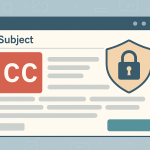
Email etiquette privacy concept showing CC misuse and a privacy shield icon.

Email Etiquette: We Need to Talk About It (Especially After What Just Happened)

Why Email Etiquette & Privacy Matter More Than Ever

Email etiquette privacy is something we rarely think about — until it goes wrong. Even though email has been around for decades, it still feels like many people haven’t learned how to use it responsibly. Recently, I received an email from a long-term care (LTC) facility where a family member resides, and the staff member accidentally CC’d roughly 256 people instead of using BCC.

This meant every recipient’s email address — including mine, despite having no connection to their mailing list — was exposed to hundreds of strangers. To prevent further exposure, I replied to the sender and BCC’d the entire group, explaining the privacy risks and proper email practices.

And then it happened…

Suddenly I became the mail administrator.

Because I tried to do the right thing and protect everyone’s privacy, my name showed up at the top of the thread — and dozens of people started emailing me, asking to be removed from “my” mailing list.

A mailing list I don’t own.
A facility I don’t work for.
A message I didn’t send.

I spent the next hour responding to strangers, clarifying that I was simply trying to stop their emails from being exposed again.

This wasn’t just inconvenient — it shows how poorly we’ve been trained to use email.


Why misusing CC is a serious problem

Putting a large recipient list in CC isn’t a harmless mistake. It has real consequences:

1. Privacy exposure

Everyone’s email became visible to 255 strangers. Many people don’t want their identity or involvement with certain organizations (like LTC facilities) shared.

2. Increased spam & phishing risk

Large visible email lists are easy targets. All it takes is one person copying the thread to start sending unsolicited or malicious messages.

3. Unnecessary confusion

People misread who actually sent the message — which is exactly why so many emailed me afterward.

4. Potential legal/compliance issues

Depending on the organization, this can violate privacy laws or internal data-handling policies. In healthcare and LTC, that risk is even higher.


The bigger problem: People aren’t reading emails properly

Most of the chaos that followed wasn’t the result of bad intent. It was the result of people:

  • Not reading who the original sender was
  • Not reading my message carefully
  • Not understanding what CC vs. BCC means
  • Assuming I was running a mailing list

We live in a world where technology is everywhere, yet basic email literacy is still shockingly low.


The basics everyone should know (and clearly, many don’t)

Read who the email is actually from

Before replying, look at the sender’s name and address.
It sounds simple… but clearly it’s not.

Read the entire message before reacting

Skimming leads to misinformation and unnecessary replies — especially “Remove me from the list” messages directed at the wrong person.

Understand To, CC, and BCC

This alone would prevent 90% of these problems.

  • To – the people directly responsible for responding.
  • CC – visible to everyone; use sparingly.
  • BCC – hides all recipients; mandatory for large groups or sensitive lists.

Don’t use Reply All unless absolutely necessary

Reply All is a gasoline can. Use only when you absolutely need a fire.


Organizations — especially healthcare — must do better

If your staff sends mass emails:

  • Train them on CC/BCC
  • Build proper mailing lists
  • Put privacy obligations in writing
  • Treat accidental exposure as a privacy incident
  • Notify recipients when it happens

This incident wasn’t malicious — but it was preventable.


Final thought: Email is powerful, but only when used properly

Most of us rely on email daily, but that doesn’t mean we’ve mastered it.

Before you hit Send on your next big-group message:

  • Read who you’re sending to
  • Read what you’re replying to
  • Use CC and BCC intentionally
  • Protect people’s privacy

Because one careless CC can turn a simple update into a privacy breach, a flood of confused replies, and an unnecessary headache for everyone — including the guy who was just trying to help.

“Good email etiquette and privacy awareness could have prevented this entirely…”

Goodbye Fitbit: A Look Back at My Wearable Journey

Like most people who jumped on the wearable tech bandwagon, my story with Fitbit began innocently enough—motivated by a workplace wellness challenge and a steep discount. But what started as a fun way to count steps and track sleep turned into a multi-year relationship full of highs, lows, busted screens, dead batteries… and one drawer overflowing with accessories I’ll never use again.

The Beginning: Fitbit Charge 2 (aka the Gateway Gadget)

My first Fitbit was a Charge 2, and I’ll admit—it was pretty cool at the time. I remember signing up for some corporate fitness thing and scoring the device at a discount. Once I strapped it on, I was hooked. Tracking my steps became a daily obsession. It buzzed when I moved, rewarded me with digital confetti when I hit goals, and gave me just enough motivation to walk an extra block or two after dinner.

First-gen Fitbit Charge 2 showing 10,000 steps milestone

From Winning to Whining: The Fitbit Versa Era

A few years later, I upgraded—or rather, won—a Fitbit Versa at a Christmas party. The timing was great, and I liked the upgrade to a full-color touchscreen and music control features.

But then… reality hit. One day while working on a project, the Versa took a hit and cracked. That was the beginning of the end.

Still loyal (and maybe a bit stubborn), I bought myself a Versa 3 in 2022. A sleek upgrade with better sensors and voice control. Unfortunately, it didn’t survive a surprise encounter with water. I brought it back to life (kind of), but most of the functions never worked properly again.

For a $300+ device, you’d hope for some resilience—but nah. Fitbit seemed to be built for yoga classes and boardrooms, not real life.

The Hidden Cost: Accessories, Bands & Screen Protectors Galore

Let’s not forget the drawer full of wristbands, bumpers, screen protectors, chargers, and cases. I’ve spent more on accessories than I care to admit—all to protect a product that rarely lived up to its durability promises.

That’s the irony of wearables: the more you try to protect them, the more disposable they seem.

The Final Straw: Google’s Acquisition

When Google took over Fitbit, things didn’t improve. More tracking, more forced account integrations, and less control. I didn’t sign up to be a beta tester for data mining.

So when the Versa 3 finally gasped its last breath, I decided it was time to move on.

The New Chapter: Garmin Venu Sq2

My new wrist companion is the Garmin Venu Sq2, which I picked up on sale after reading some solid reviews. It’s built tougher, has better battery life, and seems focused on performance over hype. Plus, it looks and feels like it was made for active people—not just casual steppers.

Let’s see if this one can outlast the 2.5-year average lifespan of my Fitbit lineup.

Final Thoughts: Lessons from a Longtime Fitbit Fan

I don’t regret owning Fitbits. They served their purpose and got me moving more than I probably would have without them. But after three devices, multiple accessory investments, and a mountain of frustrations, I’ve officially ended my Fitbit era.

Fitbit, it was fun—but we’re through.

Stay tuned for a follow-up post after a few months with the Garmin. I’ll share whether it lives up to the hype—or ends up in the same drawer graveyard.

How I Built an OpenVPN Access Server on an Old Laptop (and What I Learned)

Setting up a VPN server isn’t just for the pros—and trust me, I’m no Linux guru. But when a friend needed a secure way for his employee to work remotely, I stepped up to see what I could build with old hardware, free tools, and a bit of stubbornness.

The Setup

  • Hardware: Old Toshiba i3 laptop, 8 GB RAM, SSD
  • OS: Ubuntu 24.04 LTS (with GNOME desktop installed to help with navigation)
  • Purpose: Enable one employee to work remotely from home
  • Client Limit: OpenVPN’s free license allows two simultaneous connections—perfect for this use case

Once I had SSH configured, I shifted over to my Windows desktop to continue setup remotely. The goal: turn this aging laptop into a functioning OpenVPN Access Server.


Trial and Error (A Lot of It)

I started with various community guides to install OpenVPN manually:

  • Added the OpenVPN repository
  • Generated certificates
  • Configured initial settings and user permissions

But every time I thought I was close, something would go sideways. I failed five times, each time trying to troubleshoot—but eventually I just wiped the system and started fresh. Each rebuild taught me a little more and gave me confidence with Linux commands.


The Turning Point: OpenVPN’s Official Installer

The real breakthrough came when I realized that OpenVPN offers a full installation script and web-based GUI—you just need to sign up for a free account on their site.

Lesson learned: Once you register on the OpenVPN website, they provide an official .sh installation script (openvpn-as-x.x.x.sh) that simplifies the entire setup process. It was a game-changer.

After running the script, I accessed the web-based admin panel and finished the configuration through the GUI. It was miles easier than doing it all manually.


Domain Setup & DNS

To make it more professional for the end user, I set up a subdomain:

  • Created vpn.theirdomain.com
  • Added a corresponding A record pointing to the public IP of the office connection

This made accessing the VPN service much cleaner and easier for the remote employee.


The One Real Challenge: Networking

The hardest part? Double NAT issues—which I wasn’t expecting.

Here’s what went wrong:

  • My test environment and the employee’s home router both used the same common private IP range (192.168.1.x)
  • When the VPN tunnel connected, there was a conflict with the overlapping networks
  • Routing got confused, and nothing worked

The Fix:

We moved the OpenVPN Access Server into the actual office network, where the internal IP range was something different (10.x.x.x). Since that range doesn’t overlap with common home routers, the conflict disappeared.

Pro Tip: Avoid using 192.168.0.x or 192.168.1.x for test environments or internal networks if you’re setting up VPN tunnels—these are extremely common on home routers and will likely clash.


What I Learned

  • Rebuilding is part of learning—each wipe and reinstall gave me more insight.
  • The OpenVPN GUI and installer are beginner-friendly and saved hours of trial and error.
  • Networking problems are the real beast, not the VPN software itself.
  • Tech support matters—OpenVPN’s support team (via their ticket system) helped me understand the double NAT issue and walked me through a fix. They didn’t just fix it for me—they explained it in a way that helped me grow.

Final Thoughts

Would I recommend OpenVPN Access Server?
Absolutely. Especially if:

  • You’re on a tight budget
  • You want to repurpose aging hardware
  • You need a secure, stable remote work solution for a small team

When I set one up for my own home network, I’m going straight to that .sh installer and leveraging everything I’ve learned through this journey. No question—it was worth the effort.

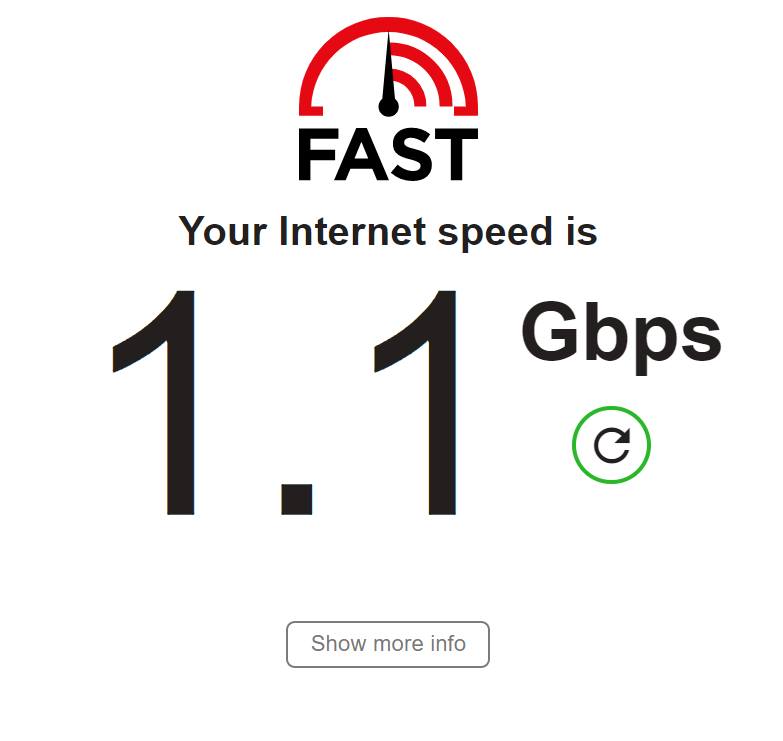
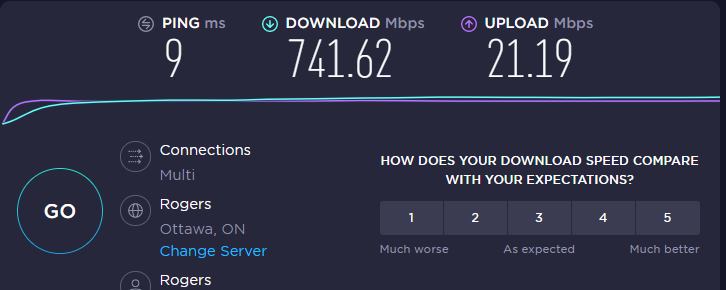
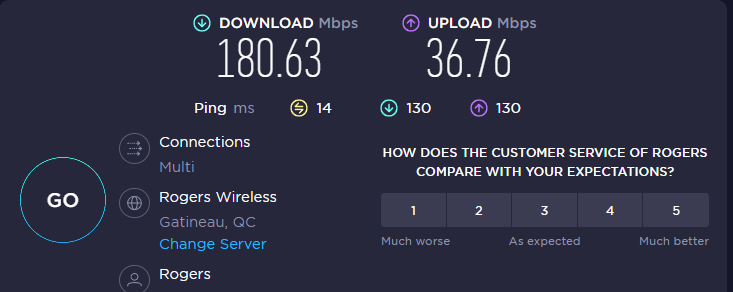
Before and After Rogers Ignite internet…

Just a few screen shots of how horrible my Rogers experience at home is now compared to when we still had digital internet with my Hitron white bread box modem….

Before screen shots

Now, the after! and I’m paying for 1.5 whereas above, I was paying for 500. #rogersishorrible

Let’s just say… I am not pleased! #rogersucks #getyourshittogetherrogers #rogersigniteisgarbage

What is the importance of IOT at home and why you should have all your IOT devices on a separate network.

The Internet of Things (IoT) refers to the interconnected network of physical devices, vehicles, home appliances, and other items that are embedded with electronics, software, and connectivity which enables these objects to collect and exchange data. In recent years, IoT technology has become increasingly popular in the home, transforming the way we live and interact with our environment. Here are some of the key benefits and reasons why IoT is becoming an essential part of the modern home.

  1. Increased Convenience and Comfort

One of the most significant benefits of IoT technology is the increased convenience and comfort it offers. For example, you can control the temperature, lighting, and even the security of your home from your smartphone. You can also use voice-activated devices like Amazon Echo or Google Home to control your smart home devices, making it easier and more convenient to control your home environment.

  1. Energy Efficiency

Another key benefit of IoT technology is that it can help you save money on your energy bills. With smart thermostats, you can set your home’s temperature to automatically adjust to your schedule, saving energy when you’re not home. Smart lighting systems can also help reduce energy costs by turning lights off when they’re not needed and automatically adjusting the brightness to suit the time of day.

  1. Improved Home Security

IoT technology also offers improved home security. With smart security systems, you can monitor your home from anywhere in the world using your smartphone or tablet. This allows you to keep an eye on your home and your family, even when you’re away. You can also receive alerts when someone enters or leaves your home, helping you stay informed about who’s coming and going.

  1. Health Monitoring

IoT technology can also help you monitor your health and the health of your family members. For example, smart wearables can track your activity levels, heart rate, and sleep patterns, helping you monitor your overall health. You can also use smart scales to track your weight and body fat percentage, giving you an accurate picture of your health and helping you make healthier lifestyle choices.

  1. Enhanced Home Automation

Finally, IoT technology offers enhanced home automation. With smart home systems, you can automate many of your home’s functions, such as turning off the lights when you leave the room, adjusting the temperature when you come home, and even starting the coffee maker in the morning. This makes it easier and more convenient to control your home environment, giving you more time to focus on the things that matter most.

In conclusion, IoT technology is transforming the way we live and interact with our environment, offering increased convenience, comfort, and security. Whether you’re looking to save money on your energy bills, monitor your health, or simply automate your home’s functions, IoT technology has something to offer for everyone. So if you’re looking to upgrade your home and enjoy the benefits of a connected lifestyle, consider investing in IoT technology today!

It is important to have a separate IoT network for several reasons:

  1. Security: IoT devices are often more vulnerable to cyberattacks compared to traditional computers and smartphones. By having a separate IoT network, you can reduce the risk of a cyberattack spreading from an infected IoT device to other devices on your network. This helps to minimize the potential harm caused by a security breach.
  2. Bandwidth Management: IoT devices can generate a lot of data, which can use up a significant amount of bandwidth on your network. Having a separate IoT network can help you manage your bandwidth and prevent IoT devices from slowing down your internet connection.
  3. Performance: Some IoT devices may not be designed for high-performance computing, which can cause them to become sluggish when connected to the same network as other high-performance devices. A separate IoT network can help ensure that these devices work optimally.
  4. Easy Management: By having a separate IoT network, it becomes easier to manage and monitor the connected devices. This makes it easier to identify any potential issues and resolve them quickly.
  5. Isolation: Having a separate IoT network also provides an extra layer of isolation, which can help protect your primary network from any potential security threats posed by IoT devices.

In summary, a separate IoT network provides better security, improved performance, and easier management of your connected devices, helping you to enjoy a more seamless and secure connected lifestyle.

Random Thoughts…

Never approach a computer problem thinking or saying, I will do this quickly. – Not sure where I got this, It could be from my brain!